

Create Cases
Welcome to our Knowledge Base
Create Cases
My Dask CRM allows you to easily manage your cases. You are able to create cases, in which you, your team, and your client, are all able to share information and collaborate.
Creating A Case
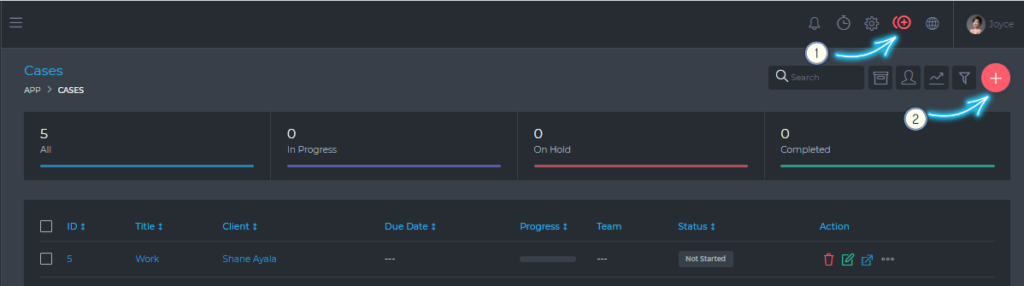
You can create a new case by clicking on the (1) Quick Add icon or by clicking on the (2) Add Case Button.
Basic Mandatory information
- Case Title*
- Client*
- Start Date*
Optional information
- Deadline
- Assigned users
- Case Manager
- This user will have admin-level access to the case. They will be able to edit all the case’s information and settings. They will also be able to view all user’s tasks and assign users to tasks. The case manager is not able to delete the case.
- Billing information
- This allows you to specify how the case will be billed. The available options are:
- Fixed Billing
- Hourly Billing
- Estimated Hours enable you to monitor your working hours against what you have allowed for.
- Estimated Costs enable you to monitor your expenditure against what you have budgeted for.
- This allows you to specify how the case will be billed. The available options are:
- Case Description
- Assigned Users Permissions
- You are able to specify if team members can collaborate on tasks. This means they will be able to view each other’s tasks and also work within the tasks (commenting, attaching files, etc)
- Client Case Permissions
- You are able to specify the level of access the client will have to the case:
- View Tasks
- Tasks Participation
- The client will be able to comment, attach files, complete a checklist, etc, within a task
- Create Tasks
- The client will be able to create new tasks for the case
- View Time Sheets
- View Expenses
- You are able to specify the level of access the client will have to the case:
- Case Progress
- You can set the progress to be calculated automatically (based on the completed tasks) or you can set it to be updated manually (you will be able to set the progress yourself)
- Category
- You can create categories via the settings dashboard. Categories can be anything that allows you to properly sort your cases (e.g. Study, Visit, Work Permit, PGWP)
- Tags
- Tags can be any text that allows you to easily identify or highlight important information about the case.
* Required information
Deleting A Case
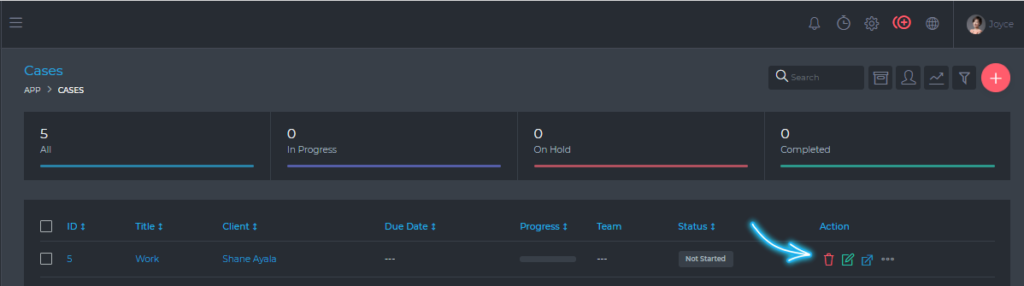
To delete a case, click on the Delete Icon, as shown in the image below:
When you delete a case, all the items/resources linked to that case will also be deleted. The list below highlights some of the items that will be deleted.
- Invoices
- Tasks
- Files
- Comments
- etc etc
Addition Editing Options
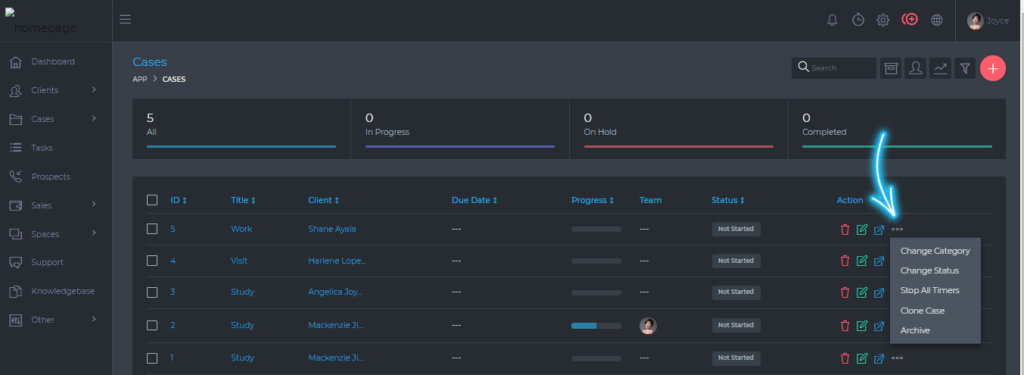
You can access more options for editing your case, via the more icon, as shown in the image below